
โšฝ World Cup 2026 โ€” every match live in 4K ยท no free trial, instant activation ยท ๐Ÿ”ž no adult contentSubscribe โ†’
How to Install Strong 4K with Hot Player
Installation guide

How to Install Strong 4K with Hot Player

Follow the steps for your device and set up your Strong 4K UK subscription with Hot Player with ease.

Android / TV Box
Fire Stick
Smart TV
iPhone / iPad
Windows / Mac
MAG / Formuler

Select your device

๐Ÿค–
Installation on Android / TV Box with Hot Player
Install Hot Player on your Android or TV Box device using the Downloader code and set up your Strong 4K subscription in a few steps.
1
Download Hot Player
Install the app Downloader from the store available on your device. Open Downloader and enter the code 395800 to access the Hot Player installation. You can also search for Hot Player directly in your device's store when available.
2
Open Hot Player
Once installed, open Hot Player on your Android or TV Box device. The app will display a MAC address needed to link your Strong 4K subscription.
3
Send your MAC address to support
Copy the MAC address shown in Hot Player and send it to our support via WhatsApp or email, along with your subscription details. Our team can guide you during activation.
4
Wait for activation
After sending the MAC address, support will verify the information and proceed with activation if applicable. The time may vary depending on availability and order validation.
5
Restart Hot Player
Once activation is ready, close and reopen Hot Player. If the setup was applied correctly, you will be able to access your Strong 4K subscription from the app.
๐Ÿ’ก Need help? If you have difficulties during installation or activation, contact our English-speaking support. We can review the basic steps with you depending on your device and the Hot Player version used.
Information needed
Downloader code: 395800
Hot Player MAC address
Your subscription details

The MAC address appears when you open Hot Player. Copy it and send it to support to finalise activation if applicable.

Need help?
Our English-speaking support can guide you depending on your device and installed version.
Contact support
๐Ÿ”ฅ
Installation on Amazon Fire Stick with Hot Player
Install Hot Player on your Fire Stick using the Downloader app with the code 395800 and set up your Strong 4K subscription.
1
Install Downloader and enable permissions
From the Amazon store, search for and install the app Downloader. Then go to Settings > My Fire TV > Developer options and enable Apps from unknown sources to allow the installation of Hot Player.
2
Enter the code 395800 in Downloader
Open Downloader and enter the code 395800. The app will open the Hot Player installation page. Download and install the app following the on-screen steps.
3
Open Hot Player and note your MAC address
Once installed, open Hot Player on your Fire Stick. The app will display a MAC address needed to link your Strong 4K subscription. Note it down or take a photo of it.
4
Send your MAC address to support
Send the MAC address to our support via WhatsApp or email, along with your subscription details. Our team can guide you during the activation process.
5
Wait for activation and restart Hot Player
Once activation is ready, close and reopen Hot Player. If the setup was applied correctly, you will be able to access your Strong 4K subscription. The time may vary depending on availability and order validation.
๐Ÿ’ก Need help? If the installation is blocked or you cannot find the unknown sources option, contact our English-speaking support. We can guide you depending on your Fire Stick model.
Information needed
Downloader code: 395800
Hot Player MAC address
Your subscription details

Enter the code 395800 in Downloader to install Hot Player. The MAC address appears the first time you open the app.

Need help?
We guide you step by step in English depending on your Fire Stick model.
Contact support
๐Ÿ“บ
Installation on Smart TV with Hot Player
Set up your Strong 4K subscription on your Smart TV with Hot Player when available for your model and brand.
1
Download Hot Player
Open the official app store of your Smart TV (Samsung, LG or another compatible brand) and search for Hot Player. Availability may vary depending on the model, brand and region. Install the app when available.
2
Open Hot Player
Once installed, open Hot Player on your Smart TV. The app will display a MAC address needed to link your Strong 4K subscription.
3
Send your MAC address to support
Copy or note the MAC address shown in Hot Player and send it to our support via WhatsApp or email, along with your subscription details. Our team can guide you during activation.
4
Wait for activation
After sending the MAC address, support will verify the information and proceed with activation if applicable. The time may vary depending on availability and order validation.
5
Restart Hot Player
Once activation is ready, close and reopen Hot Player on your Smart TV. If the setup was applied correctly, you will be able to access your Strong 4K subscription.
๐Ÿ’ก Need help? If Hot Player does not appear in your Smart TV store or if you have difficulties during activation, contact our English-speaking support. We can guide you depending on your TV model and the available version.
Information needed
Hot Player MAC address
Your subscription details

The MAC address appears automatically when you open Hot Player. Note it and send it to support to finalise activation.

Need help?
Our support can guide you depending on your Smart TV model and the available version.
Contact support
๐ŸŽ
Installation on iPhone / iPad with Hot Player
Set up your Strong 4K subscription on iPhone or iPad with Hot Player when available depending on the region and iOS version.
1
Download Hot Player from the App Store
Open App Store on your iPhone or iPad and search for Hot Player. Availability may vary depending on the region and the installed iOS version. Download and install the app when available.
2
Open Hot Player
Once installed, open Hot Player on your iOS device. The app will display a MAC address needed to link your Strong 4K subscription.
3
Send your MAC address to support
Copy the MAC address shown in Hot Player and send it to our support via WhatsApp or email, along with your subscription details. Our team can guide you during activation.
4
Wait for activation
After sending the MAC address, support will verify the information and proceed with activation if applicable. The time may vary depending on availability and order validation.
5
Restart Hot Player
Once activation is ready, close and reopen Hot Player. If the setup was applied correctly, you will be able to access your Strong 4K subscription from your iPhone or iPad.
๐Ÿ’ก Need help? If Hot Player is not available in your region or if you have difficulties during activation, contact our English-speaking support. We can guide you depending on your iOS version and the availability of the app.
Information needed
Hot Player MAC address
Your subscription details

The MAC address appears when you open Hot Player. Send it to support to finalise activation if applicable.

Need help?
Our support can guide you depending on your iOS version and the availability of Hot Player.
Contact support
๐Ÿ’ป
Installation on Windows / Mac with Hot Player
Access your Strong 4K subscription on a computer with Hot Player when available for your operating system.
1
Download Hot Player
Search for Hot Player and download it for your Windows or Mac operating system when available. Compatibility may vary depending on the operating system version and the computer configuration.
2
Install and open Hot Player
Follow the installation steps on your computer. Once installed, open Hot Player. The app will display a MAC address needed to link your Strong 4K subscription.
3
Send your MAC address to support
Copy the MAC address shown in Hot Player and send it to our support via WhatsApp or email, along with your subscription details. Our team can guide you during activation.
4
Wait for activation
After sending the MAC address, support will verify the information and proceed with activation if applicable. The time may vary depending on availability and order validation.
5
Restart Hot Player
Once activation is ready, close and reopen Hot Player on your computer. If the setup was applied correctly, you will be able to access your Strong 4K subscription.
๐Ÿ’ก Need help? If Hot Player is not available for your operating system or if you have difficulties during activation, contact our English-speaking support. We can guide you depending on your configuration and the available version.
Information needed
Hot Player MAC address
Your subscription details

The MAC address appears when you open Hot Player. Send it to support to finalise activation if applicable.

Need help?
Our support can guide you depending on your operating system and the available Hot Player version.
Contact support
๐Ÿ“ก
Installation on MAG / Formuler with Hot Player
Set up your Strong 4K subscription on your MAG or Formuler device with Hot Player when available and compatible with your model.
1
Check the availability of Hot Player
Check if Hot Player is available for your MAG or Formuler device model. Compatibility may vary depending on the model and the installed firmware version. Check the store or the apps menu of your device.
2
Install and open Hot Player
Install Hot Player on your device following the instructions available for your model. Once installed, open the app. It will display a MAC address needed to link your Strong 4K subscription.
3
Send your MAC address to support
Copy or note the MAC address shown in Hot Player and send it to our support via WhatsApp or email, along with your subscription details. Our team can guide you during activation.
4
Wait for activation
After sending the MAC address, support will verify the information and proceed with activation if applicable. The time may vary depending on availability and order validation.
5
Restart Hot Player
Once activation is ready, close and reopen Hot Player on your device. If the setup was applied correctly, you will be able to access your Strong 4K subscription.
๐Ÿ’ก Need help? If Hot Player is not available for your MAG or Formuler model, or if you have difficulties during installation or activation, contact our English-speaking support. We can guide you depending on your device and the available version.
Information needed
Hot Player MAC address
Device model
Your subscription details

Hot Player compatibility may vary depending on the MAG or Formuler model. Support can guide you depending on your specific device.

Need help?
Our support can guide you depending on your MAG or Formuler model and the availability of Hot Player.
Contact support

Need help installing Hot Player?

Our English-speaking support can guide you during the installation and activation of your Strong 4K subscription with Hot Player, depending on your device and installed version.

Contact support English-speaking support available 7 days a week

How to Install Strong 4K IPTV on Fire Stick, Smart TV and Android TV in the UK

Installing Strong 4K IPTV is a short job: a compatible player, the credentials we email you, and one screen of details filled in. No cables to run, no engineer, nothing to change on your router. If you can install an app on your TV, you can do this. Most people are through the whole thing in under ten minutes, Fire Stick included.
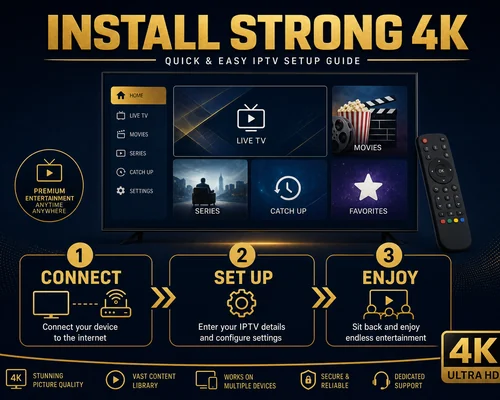
Install Strong 4K on Smart TV with a compatible IPTV app

Install and configure Strong4K in three steps

Read the three steps through once, then work along with the remote in your hand. Keep the email with your credentials open on your phone, since you will be typing a username and password on a TV keyboard and accuracy matters more than speed.

Step 1: Install a compatible IPTV player

Get the player named in your install guide onto the device. Smart TV and Android TV owners search the built-in store. Fire Stick owners open Settings, allow installs from unknown sources, then use the Downloader app to bring the player across. On a computer or phone, download the build for that operating system and let it install as normal.

Step 2: Enter your credentials and configure access

Open the player and add a new account or playlist. With Xtream Codes you type a name of your choosing, then the username, password and server address from your email. With an M3U playlist you paste one long link instead. Check the password character by character before saving, because a single wrong letter is easily the most common reason a first attempt fails.

Step 3: Check the connection and finish

Load a live channel and let it run for a minute. If the picture holds steady, you are finished and the rest of the list will behave the same way. If it stalls, look at the connection before the app: an ethernet cable straight into the TV, or the 5 GHz WiFi band, holds up far better than a busy 2.4 GHz network shared with the whole house. Restart the player once after saving your details if channels do not appear straight away.

You need an active Strong 4K subscription to finish setup

The player will install happily without one, but it has nothing to load until an account is attached to it. Choose your term and the number of screens, and your credentials come by email shortly after payment. Then start again at step one and work down the page.

IPTV Pricing

FAQ: installing Strong 4K IPTV in the UK

The installation questions we answer most often. If your device is not covered here, ask us before you order and we will confirm whether it works.

How do I install Strong 4K IPTV on my device?

Three things, in this order. Install a compatible IPTV player on your device, from your TV’s store or through the Downloader app on a Fire Stick. Open it and add your access using either the M3U link or the Xtream Codes username, password and server address we email you. Then open a live channel to confirm the list loads. That is the entire installation, and you only do it once per device.

Yes to all three, and the principle is the same on each. What changes is how the player gets installed: Samsung and LG sets use their own stores, Android TV uses its app store, and a Fire Stick needs the Downloader app because Amazon’s store does not carry every player. Menu names shift slightly between models, so follow the guide we send for your device rather than a generic video.

Just the credentials we email after your order: a username, a password and a server address, plus an M3U link if your player prefers that instead. Nothing more. No card details go into the app and no personal information is typed into the player. Keep that email safe, because you will want it again if you reinstall or set up a second device.

Whichever your player supports. Xtream Codes is the better choice when the app offers it, since it splits live channels, films and series into separate sections and refreshes faster. M3U is a single link and works everywhere, including players that only accept a URL. Both are supplied with your subscription, so you can try one and switch to the other without contacting us.

Check the connection before blaming the stream. Around 10 Mb/s handles Full HD comfortably and roughly 25 Mb/s is sensible for 4K. Run the speed test on the device itself, not on your phone in another room. A wired connection is the most reliable fix, followed by moving the device onto the 5 GHz WiFi band. If the speed is fine and it still stutters, email us or message us on WhatsApp with the channel name and the time it happened so we can look at it properly.

Strong 4K International

๐Ÿ‡ซ๐Ÿ‡ทFrance๐Ÿ‡ช๐Ÿ‡ธEspaรฑa๐Ÿ‡ฉ๐Ÿ‡ชDeutschland๐Ÿ‡ฆ๐Ÿ‡นร–sterreich๐Ÿ‡ฌ๐Ÿ‡งUnited Kingdom๐Ÿ‡ฎ๐Ÿ‡นItalia๐Ÿ‡ณ๐Ÿ‡ฑNederland๐Ÿ‡ต๐Ÿ‡ฑPolska๐Ÿ‡ซ๐Ÿ‡ฎSuomi๐Ÿ‡ธ๐Ÿ‡ชSverige
Commander

Legal notice: "Strong" and related marks are the property of their respective owners. This site is operated by an independent reseller and is not the owner of, affiliated with, or endorsed by the Strong brand. We only resell subscription services.