โšฝ World Cup 2026 โ€” every match live in 4K ยท no free trial, instant activation ยท ๐Ÿ”ž no adult contentSubscribe โ†’
How to Install Strong 4K with Hot Player
Installation guide

How to Install Strong 4K with Hot Player

Follow the steps for your device and set up your Strong 4K UK subscription with Hot Player with ease.

Android / TV Box
Fire Stick
Smart TV
iPhone / iPad
Windows / Mac
MAG / Formuler

Select your device

๐Ÿค–
Installation on Android / TV Box with Hot Player
Install Hot Player on your Android or TV Box device using the Downloader code and set up your Strong 4K subscription in a few steps.
1
Download Hot Player
Install the app Downloader from the store available on your device. Open Downloader and enter the code 395800 to access the Hot Player installation. You can also search for Hot Player directly in your device's store when available.
2
Open Hot Player
Once installed, open Hot Player on your Android or TV Box device. The app will display a MAC address needed to link your Strong 4K subscription.
3
Send your MAC address to support
Copy the MAC address shown in Hot Player and send it to our support via WhatsApp or email, along with your subscription details. Our team can guide you during activation.
4
Wait for activation
After sending the MAC address, support will verify the information and proceed with activation if applicable. The time may vary depending on availability and order validation.
5
Restart Hot Player
Once activation is ready, close and reopen Hot Player. If the setup was applied correctly, you will be able to access your Strong 4K subscription from the app.
๐Ÿ’ก Need help? If you have difficulties during installation or activation, contact our English-speaking support. We can review the basic steps with you depending on your device and the Hot Player version used.
Information needed
Downloader code: 395800
Hot Player MAC address
Your subscription details

The MAC address appears when you open Hot Player. Copy it and send it to support to finalise activation if applicable.

Need help?
Our English-speaking support can guide you depending on your device and installed version.
Contact support
๐Ÿ”ฅ
Installation on Amazon Fire Stick with Hot Player
Install Hot Player on your Fire Stick using the Downloader app with the code 395800 and set up your Strong 4K subscription.
1
Install Downloader and enable permissions
From the Amazon store, search for and install the app Downloader. Then go to Settings > My Fire TV > Developer options and enable Apps from unknown sources to allow the installation of Hot Player.
2
Enter the code 395800 in Downloader
Open Downloader and enter the code 395800. The app will open the Hot Player installation page. Download and install the app following the on-screen steps.
3
Open Hot Player and note your MAC address
Once installed, open Hot Player on your Fire Stick. The app will display a MAC address needed to link your Strong 4K subscription. Note it down or take a photo of it.
4
Send your MAC address to support
Send the MAC address to our support via WhatsApp or email, along with your subscription details. Our team can guide you during the activation process.
5
Wait for activation and restart Hot Player
Once activation is ready, close and reopen Hot Player. If the setup was applied correctly, you will be able to access your Strong 4K subscription. The time may vary depending on availability and order validation.
๐Ÿ’ก Need help? If the installation is blocked or you cannot find the unknown sources option, contact our English-speaking support. We can guide you depending on your Fire Stick model.
Information needed
Downloader code: 395800
Hot Player MAC address
Your subscription details

Enter the code 395800 in Downloader to install Hot Player. The MAC address appears the first time you open the app.

Need help?
We guide you step by step in English depending on your Fire Stick model.
Contact support
๐Ÿ“บ
Installation on Smart TV with Hot Player
Set up your Strong 4K subscription on your Smart TV with Hot Player when available for your model and brand.
1
Download Hot Player
Open the official app store of your Smart TV (Samsung, LG or another compatible brand) and search for Hot Player. Availability may vary depending on the model, brand and region. Install the app when available.
2
Open Hot Player
Once installed, open Hot Player on your Smart TV. The app will display a MAC address needed to link your Strong 4K subscription.
3
Send your MAC address to support
Copy or note the MAC address shown in Hot Player and send it to our support via WhatsApp or email, along with your subscription details. Our team can guide you during activation.
4
Wait for activation
After sending the MAC address, support will verify the information and proceed with activation if applicable. The time may vary depending on availability and order validation.
5
Restart Hot Player
Once activation is ready, close and reopen Hot Player on your Smart TV. If the setup was applied correctly, you will be able to access your Strong 4K subscription.
๐Ÿ’ก Need help? If Hot Player does not appear in your Smart TV store or if you have difficulties during activation, contact our English-speaking support. We can guide you depending on your TV model and the available version.
Information needed
Hot Player MAC address
Your subscription details

The MAC address appears automatically when you open Hot Player. Note it and send it to support to finalise activation.

Need help?
Our support can guide you depending on your Smart TV model and the available version.
Contact support
๐ŸŽ
Installation on iPhone / iPad with Hot Player
Set up your Strong 4K subscription on iPhone or iPad with Hot Player when available depending on the region and iOS version.
1
Download Hot Player from the App Store
Open App Store on your iPhone or iPad and search for Hot Player. Availability may vary depending on the region and the installed iOS version. Download and install the app when available.
2
Open Hot Player
Once installed, open Hot Player on your iOS device. The app will display a MAC address needed to link your Strong 4K subscription.
3
Send your MAC address to support
Copy the MAC address shown in Hot Player and send it to our support via WhatsApp or email, along with your subscription details. Our team can guide you during activation.
4
Wait for activation
After sending the MAC address, support will verify the information and proceed with activation if applicable. The time may vary depending on availability and order validation.
5
Restart Hot Player
Once activation is ready, close and reopen Hot Player. If the setup was applied correctly, you will be able to access your Strong 4K subscription from your iPhone or iPad.
๐Ÿ’ก Need help? If Hot Player is not available in your region or if you have difficulties during activation, contact our English-speaking support. We can guide you depending on your iOS version and the availability of the app.
Information needed
Hot Player MAC address
Your subscription details

The MAC address appears when you open Hot Player. Send it to support to finalise activation if applicable.

Need help?
Our support can guide you depending on your iOS version and the availability of Hot Player.
Contact support
๐Ÿ’ป
Installation on Windows / Mac with Hot Player
Access your Strong 4K subscription on a computer with Hot Player when available for your operating system.
1
Download Hot Player
Search for Hot Player and download it for your Windows or Mac operating system when available. Compatibility may vary depending on the operating system version and the computer configuration.
2
Install and open Hot Player
Follow the installation steps on your computer. Once installed, open Hot Player. The app will display a MAC address needed to link your Strong 4K subscription.
3
Send your MAC address to support
Copy the MAC address shown in Hot Player and send it to our support via WhatsApp or email, along with your subscription details. Our team can guide you during activation.
4
Wait for activation
After sending the MAC address, support will verify the information and proceed with activation if applicable. The time may vary depending on availability and order validation.
5
Restart Hot Player
Once activation is ready, close and reopen Hot Player on your computer. If the setup was applied correctly, you will be able to access your Strong 4K subscription.
๐Ÿ’ก Need help? If Hot Player is not available for your operating system or if you have difficulties during activation, contact our English-speaking support. We can guide you depending on your configuration and the available version.
Information needed
Hot Player MAC address
Your subscription details

The MAC address appears when you open Hot Player. Send it to support to finalise activation if applicable.

Need help?
Our support can guide you depending on your operating system and the available Hot Player version.
Contact support
๐Ÿ“ก
Installation on MAG / Formuler with Hot Player
Set up your Strong 4K subscription on your MAG or Formuler device with Hot Player when available and compatible with your model.
1
Check the availability of Hot Player
Check if Hot Player is available for your MAG or Formuler device model. Compatibility may vary depending on the model and the installed firmware version. Check the store or the apps menu of your device.
2
Install and open Hot Player
Install Hot Player on your device following the instructions available for your model. Once installed, open the app. It will display a MAC address needed to link your Strong 4K subscription.
3
Send your MAC address to support
Copy or note the MAC address shown in Hot Player and send it to our support via WhatsApp or email, along with your subscription details. Our team can guide you during activation.
4
Wait for activation
After sending the MAC address, support will verify the information and proceed with activation if applicable. The time may vary depending on availability and order validation.
5
Restart Hot Player
Once activation is ready, close and reopen Hot Player on your device. If the setup was applied correctly, you will be able to access your Strong 4K subscription.
๐Ÿ’ก Need help? If Hot Player is not available for your MAG or Formuler model, or if you have difficulties during installation or activation, contact our English-speaking support. We can guide you depending on your device and the available version.
Information needed
Hot Player MAC address
Device model
Your subscription details

Hot Player compatibility may vary depending on the MAG or Formuler model. Support can guide you depending on your specific device.

Need help?
Our support can guide you depending on your MAG or Formuler model and the availability of Hot Player.
Contact support

Need help installing Hot Player?

Our English-speaking support can guide you during the installation and activation of your Strong 4K subscription with Hot Player, depending on your device and installed version.

Contact support English-speaking support available 7 days a week

How to Install Strong 4K on Smart TV, Android TV and Fire Stick

Installing Strong 4K is easy when you use an IPTV app compatible with your device. With Strong 4K UK, you can set up the service on Smart TV, Android TV, Fire Stick, iOS, PC and other compatible devices using an M3U IPTV list or Xtream Codes IPTV, depending on the player used.

Install Strong 4K on Smart TV with a compatible IPTV app

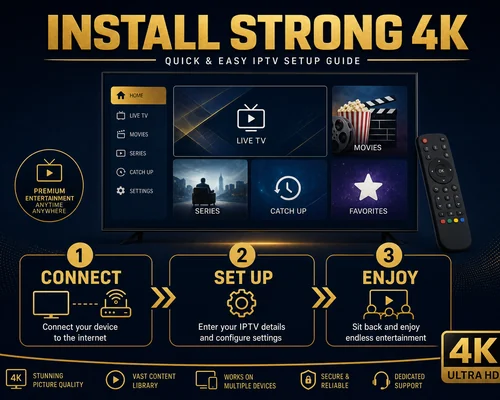
How to Install and Set Up Strong 4K UK in 3 Steps

Installing Strong 4K UK on your device requires no advanced technical knowledge. With a compatible IPTV app and your access credentials, you can complete the setup by following clear steps, depending on your device and the IPTV player you use.

Choose and Install a Compatible IPTV App

Select a compatible IPTV app depending on your device. To install IPTV on Smart TV, Android TV or Fire Stick, use your device’s store or usual installation method. On iOS or PC, choose a player compatible with your operating system and the instructions received.

Enter Your Credentials and Set Up Access

Open the installed app and go to the setup section. Depending on the player used, you can connect Strong 4K UK via an M3U IPTV list or Xtream Codes IPTV. Enter the access details received after purchasing your subscription and save the setup.

Check the Connection and Complete the Installation

Once the setup is complete, check that the access loads correctly on your compatible device. If you encounter any difficulty during installation or setup, our English-speaking support can guide you step by step, depending on your device, app and connection method.

Start your installation with an active Strong 4K subscription

To complete the installation and set up Hot Player, you need an active Strong 4K subscription. Check our IPTV plans for the UK and choose the option that best fits your usage before starting the setup.

IPTV Pricing

How to Install Strong 4K FAQ: Set Up Your IPTV Step by Step

Have questions about installing or setting up Strong 4K UK on your device? Here you will find clear answers to the most common questions about installation, credentials, M3U IPTV list and Xtream Codes IPTV. If you need extra help, our English-speaking support can guide you.

How do I install Strong 4K UK on my device?

To install Strong 4K UK, download a compatible IPTV app for your device and enter your access credentials via an M3U IPTV list or Xtream Codes IPTV, depending on the chosen player. The instructions received after purchasing your subscription will help you complete the setup with no advanced technical knowledge.

Yes. Strong 4K UK can be set up on Smart TV, Android TV, Fire Stick and other compatible devices. The process may vary depending on the model and IPTV app used, so you should follow the instructions for your device and IPTV player.

To set up IPTV with Strong 4K UK, you will need the access credentials received after purchasing your subscription. Depending on the IPTV player used, an M3U IPTV list URL or the Xtream Codes IPTV connection details may be required.

It depends on the IPTV player you have installed on your device. Some players support both methods, while others allow only one. The instructions for your Strong 4K UK subscription will indicate which method to use depending on the chosen app.

If you have problems installing or setting up Strong 4K on your device, contact our English-speaking support. The team can review the basic steps with you and guide you depending on your device, the compatible IPTV app and the connection method used.

Strong 4K International

๐Ÿ‡ซ๐Ÿ‡ทFrance๐Ÿ‡ช๐Ÿ‡ธEspaรฑa๐Ÿ‡ฉ๐Ÿ‡ชDeutschland๐Ÿ‡ฆ๐Ÿ‡นร–sterreich๐Ÿ‡ฌ๐Ÿ‡งUnited Kingdom๐Ÿ‡ฎ๐Ÿ‡นItalia๐Ÿ‡ณ๐Ÿ‡ฑNederland๐Ÿ‡ต๐Ÿ‡ฑPolska๐Ÿ‡ซ๐Ÿ‡ฎSuomi๐Ÿ‡ธ๐Ÿ‡ชSverige
Commander

Legal notice: "Strong" and related marks are the property of their respective owners. This site is operated by an independent reseller and is not the owner of, affiliated with, or endorsed by the Strong brand. We only resell subscription services.